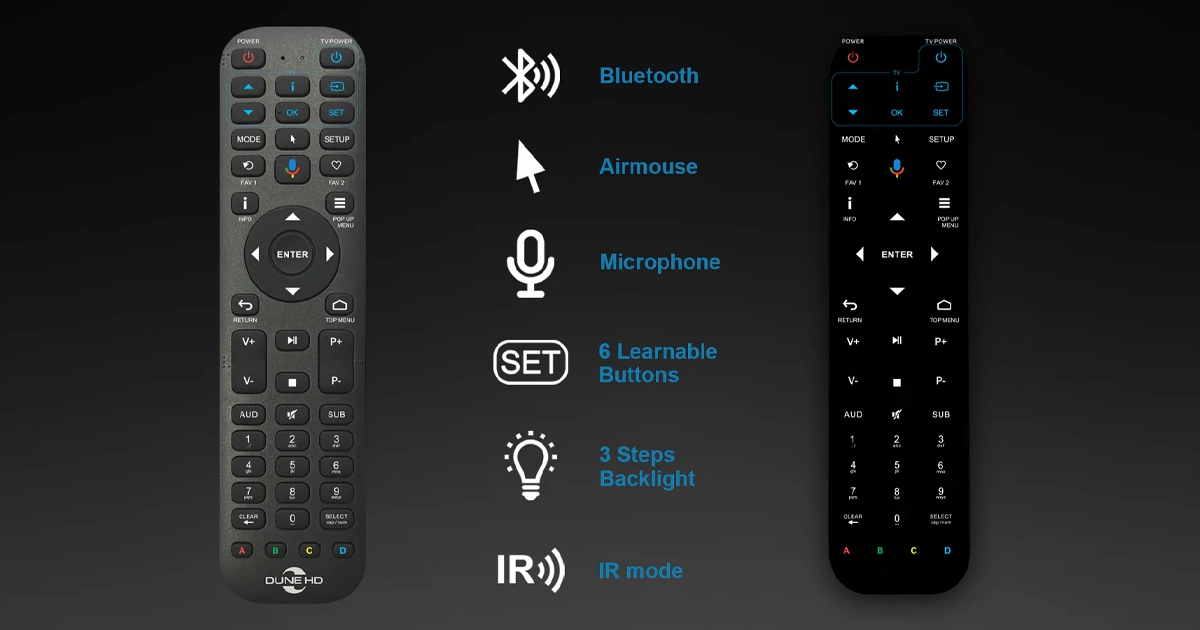
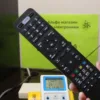
The R4 remote control is made of high-quality plastic and features a minimalist design, compact size, and extended functionality:
Bluetooth, AirMouse, microphone, 6 programmable (learning) buttons, 3 backlight levels, and IR mode.
Compatible with Dune HD media players with built-in Bluetooth.
Pairing the Dune HD Remote (Bluetooth)
Point the remote at the player and press any button. The remote will pair with the player automatically.
If the remote was previously paired or if any issues occur, press and hold
ENTER and V+ for 3 seconds to put the remote into pairing mode.
Use the menu Settings / System / Remotes & Accessories to remove the remote and perform pairing again.
Using the Remote to Control a TV
You can program 4 learning buttons located in the TV section
(TV DOWN, TV UP, TV INPUT, TV POWER)
to control your TV or other equipment:
Press and hold the SET button for 3 seconds. The indicator near the POWER button will light steadily.
Press one of the 6 learning buttons. The indicator will start blinking slowly.
Place both remotes so their IR emitters face each other at a distance of about 1 cm.
Press and hold the button on the other remote until the indicator stops blinking. Learning is complete.
Repeat steps 2–4 to program other buttons if needed.
Key Combinations (hold for 3 seconds)
Pairing: ENTER + V+
Unpairing / IR mode: ENTER + V−
Backlight off / 33% / 66% / 100%: SET + 0 / 1 / 2 / 3
Factory reset: ENTER + TOP MENU
Button Description
POWER — turn the player on/off.
TV section (TV DOWN, TV UP, OK, i, SET, TV INPUT, TV POWER) —
learning buttons for controlling a TV or other equipment.
MODE, SETUP — playback control and additional functions.
MOUSE — AirMouse mode.
FAV1 — “Recent” menu or user-assigned function.
FAV2 — “Favorites” menu or user-assigned function.
MIC — microphone / voice search.
Arrows, ENTER, RETURN, TOP MENU, POP UP MENU, INFO —
navigation, selection, return, main menu, pop-up actions, and information display.
MUTE — mute/unmute sound.
AUDIO (AUD), SUBTITLE (SUB) — switch audio tracks and subtitles.
V+ / V− — volume control.
PLAY/PAUSE, STOP — playback control.
P+ / P− — list scrolling and additional functions.
0–9 — numeric and text input.
CLEAR — delete last character or selected item.
SELECT — text input mode, add item to list.
A (red), B (green), C (yellow), D (blue) — control various functions.
Note: Button availability and functions depend on the application. Not all applications support all buttons.
For all bundled Dune remote controls, it is recommended to use alkaline batteries and not to use the batteries included in the package, as they are usually zinc-carbon batteries intended for equipment testing only. Therefore, the supplied batteries should be replaced as soon as possible, since their use may lead to incorrect operation of the remote controls.
Yesterday I received my Dune HD R4 remote, and it’s a great addition to my media system. It has all the features of the Dune HD R3, but now with backlighting. If needed, I can test it with a wide range of different media players.
I recently bought and received the Dune HD R4 for the Thomson 270.
The remote is absolutely awesome, but I have a problem. I can’t control the TV volume with it. When I try to enter the volume setup mode, it only accepts the original TV remote as a configuration option.
Is there any way to work around this? I understand that CEC can be used, but it’s extremely buggy and seems to increase/decrease the volume by random amounts.



5 comments
Andreas Rettinger
Thank you very much — only here was I able to understand how to set up the remote control.
#Санëkk
For all bundled Dune remote controls, it is recommended to use alkaline batteries and not to use the batteries included in the package, as they are usually zinc-carbon batteries intended for equipment testing only. Therefore, the supplied batteries should be replaced as soon as possible, since their use may lead to incorrect operation of the remote controls.
clarkss12
Yesterday I received my Dune HD R4 remote, and it’s a great addition to my media system. It has all the features of the Dune HD R3, but now with backlighting. If needed, I can test it with a wide range of different media players.
TheFiftyCalibre
I recently bought and received the Dune HD R4 for the Thomson 270.
The remote is absolutely awesome, but I have a problem. I can’t control the TV volume with it. When I try to enter the volume setup mode, it only accepts the original TV remote as a configuration option.
Is there any way to work around this? I understand that CEC can be used, but it’s extremely buggy and seems to increase/decrease the volume by random amounts.
Thanks.
mkorop.main@gmail.comAuthor
You can reprogram the blue buttons at the top. By default, they are configured for LG TVs.
Check the “How to do it” section on the Dune R4 web page.