Review: Dune HD Homatics Box R 4K Plus — “Who’s the Newcomer?”
Dune HD Homatics Box R 4K Plus is a next-generation media player powered by the latest Amlogic S905X4-K processor with support for Dolby Vision and Dolby Atmos. The device runs on Android TV 11 and features a 4 GB RAM / 32 GB storage configuration. This player boasts Google and Netflix certification, support for the AV1 codec, VP9 Profile 2, 1 Gbps LAN, and Wi-Fi 6.
A distinctive feature of this device is the proprietary Dune HD Media Center, which significantly expands the media player’s functionality. The key advantage of the Media Center is the ability to play Dolby Vision P7 FEL from any container.
I first became familiar with Dune HD products at the beginning of 2021, when I purchased the Pro Vision 4K Solo media player. Before that, for many years I had been using devices from Zidoo, having tried almost all of their models available at the time (except for the most expensive ones). My last device was the Z1000 Pro. Eventually, I simply couldn’t take it anymore — my patience had run out.
With all due respect to Zidoo, I was frankly tired of their media players. Over so many years (I had been using their devices since 2017), the manufacturer did not even bother to add proper Russian language support. What is currently used is a translation made by an enthusiast who did everything himself and sent it to Zidoo’s technical department. Even so, they still manage to break it somehow (for example, in Zidoo Music it still says “Collect” instead of “Favorites” and “Artists” instead of “Performers”, and I won’t even mention “Change vegetation” instead of “Change artist photo”). Since there was no proper localization, it goes without saying that there was no proper search in their Home Theater catalog either (which, by the way, still doesn’t exist). Neither voice nor text search — at least not in Russian. As a result, quickly finding the right movie in a large collection became quite problematic. And this is far from everything that dissatisfied me, but that is a separate story.
So, I decided to look for something new. In parallel with Zidoo players, I also used devices from Ugoos, which left me with very pleasant impressions, but they could not become my main solution, and eventually I had to abandon them as well.
My choice fell on a device from Dune HD. The Pro Vision 4K Solo literally became a breath of fresh air for me. It combined everything I needed, and I didn’t notice any serious compromises for myself. Of course, for a first experience, I chose a more than successful model.
I was pleasantly surprised by the long-term support that Dune provides for its devices. Just open the firmware section and see for yourself: even older devices based on Sigma have their latest firmware dated 2019. As a rule, software updates for all product lines are released at the same time, so models from 2018 are updated together with current ones.
I had long known that Dune has a fairly large and very loyal community, and honestly, this surprised me a lot. However, it quickly became clear that this loyalty did not come out of nowhere. My current device was developing right before my eyes along with other devices from this manufacturer. Try reading two-year-old reviews of other Dune players and compare them with how things are now — the devices are steadily evolving and getting better and better.
I was also pleasantly surprised by the simple firmware rollback procedure. If you don’t like an update, you can simply install the previous version (or any firmware version at all — there are no restrictions). You don’t even need to download anything from the website: all firmware versions are available directly in the settings menu. Just choose the one you need and install it.
After realizing and digesting all this, I became curious — was there some kind of catch? It couldn’t be this good, could it? I wanted to verify everything personally, so by actively using other devices from this manufacturer, I tested almost all current product lines (at the same time getting rid of all my Zidoos, Ugoos, and HiMedias), and even some models that were already discontinued. I should note right away that I couldn’t afford the Ultra Vision 4K — this device turned out to be too “powerful” both for me and for my setup.
There was no catch. The developers squeeze the maximum out of their devices. If there is still something that can be achieved, they do it. And these are not just updates to two applications, as in the case of Zidoo, but full-fledged updates. Compare, for example, the old Zidoo X9S and the Dune HD Pro 4K on similar hardware — the latter is still being updated to this day, unlike its competitor.
For instance, all supported devices (Android-based, of course) received a new interface, which I will talk about below. Indeed, at a quick glance at all Dune models, one might think that they all run the same firmware with the same extensive capabilities. This is not entirely true — miracles don’t happen — but all the key advantages are preserved. This is the first time I have encountered such an approach, at least in the media player segment.
Of course, I couldn’t ignore the current new releases either. There are two of them, since along with the hero of our review, its “younger brother”, the Boxy, was also introduced. Sales have just started. After all, official Android TV combined with all the capabilities of Dune sounds interesting, doesn’t it? Well then, let’s finally put an end to this rather long introduction and get down to business.
Today I would like to tell you about the “senior” device (at least at the time of writing this review) in Dune’s new line of players. In mid-March 2023, the Dune HD Homatics Box R 4K Plus went on sale. Let’s see what this new product has in store for us. And it will definitely surprise us — after all, today it is the most advanced certified media player on the market!
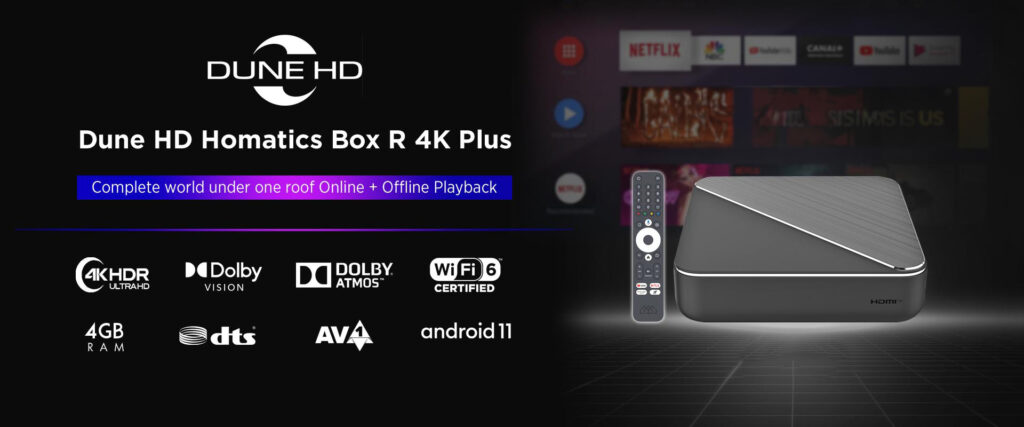
- Media player – 1 pc
- 12 V 1.5 A power adapter – 1 pc
- Remote control (Bluetooth + IR) – 1 pc
- AAA batteries – 2 pcs
- HDMI cable – 1 pc
- Quick user guide (in Russian and English) + key features reminder – 3 pcs
Let’s take a closer look at this TV Box.
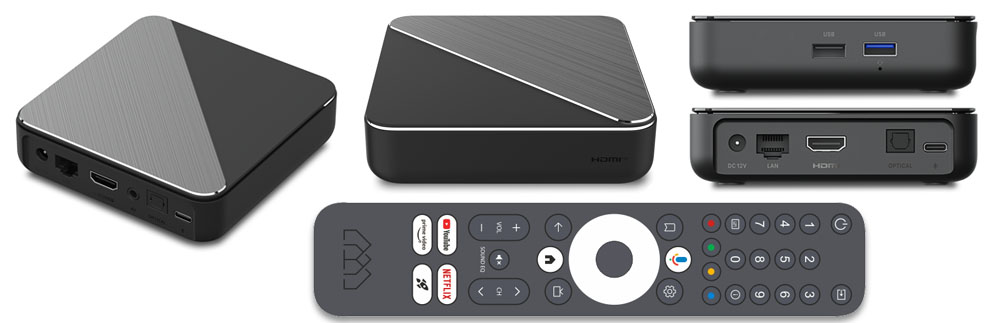
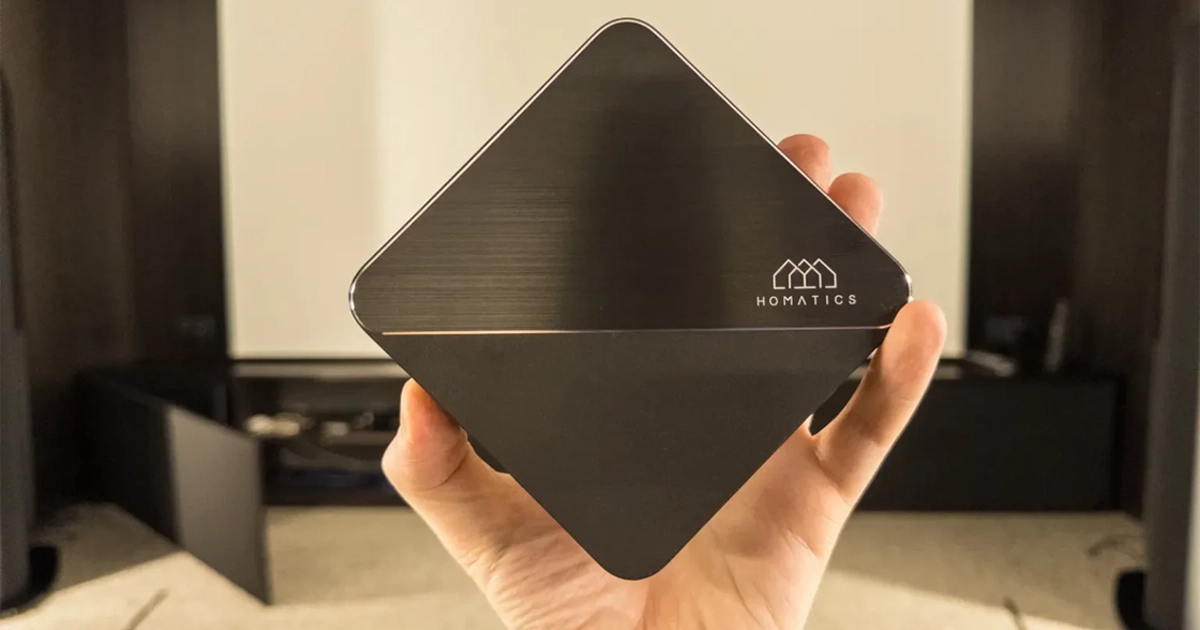
What can you say — the set-top box looks solid. Its dimensions are 114 × 114 × 28 mm. The top panel features a substantial metal insert with the Homatics logo. The weight is 260 g, and it is truly noticeable.
In terms of size, this media player significantly surpasses its conditional “younger brother.”
Notably, there is no LED status indicator on the front panel. Instead, an LED backlight is used!
In operation, it glows with a pleasant turquoise light, and in sleep mode — red. This red light gave me a slight sense of nostalgia: as a child, I watched the series “Knight Rider,” where the “smart” black car KITT had the same red LED backlight at the front! My camera doesn’t capture this red color well, so I didn’t even try to photograph it.
I found this solution quite interesting, as the backlight is designed stylishly and doesn’t turn the media player into a disco ball. Moreover, the brightness of the backlight can be adjusted, or it can be completely turned off.
On the back edge of the device, the following ports are located:
- Power connector
- LAN — 1 Gbps port
- HDMI with 4K 60fps support
- AV output
- Optical port (S/PDIF)
- Expansion port (for modules)
Let’s highlight the expansion port. Currently, there is a DVB-T2/C module available that must be purchased separately, if you need it. I will talk about it a bit later. This port cannot serve as an additional USB port.
Here I’ll allow myself a slight digression to provide a small update. As of August 2025, the second revision of the media player is on the market. The main difference from the first revision is the absence of the AV output. Keep this in mind.
On the right panel, the following are located:
- USB 2.0
- USB 3.0
- Reset button
The left side of the media player is free of any ports or connectors. As you can see, there is no slot for Micro SD memory cards.
Now let’s take a look at a brief list of technical specifications:
- Media processor: Amlogic S905X4-K with Dolby Vision, Dolby Atmos, DTS licenses
- CPU: ARM Cortex A55 4-core
- Operating memory: 4 GB
- Flash memory: 32 GB
- Ethernet: 10/100/1000 Mbit/s
- Wi-Fi: 802.11b/g/n/ac/ax (Wi-Fi 6), Dual Band 2.4+5 GHz, 2T2R
- Bluetooth: 5.0
- USB ports: 1x USB 3.0 + 1x USB 2.0
- HDMI output: HDMI 2.1 up to 4Kp60 HDR / HDR10+ / Dolby Vision, HDCP 2.2
- Analog A/V output: Absent in new batches (May/2023 and later), present only in old batches: 3.5mm minijack (composite video + stereo audio)
- S/PDIF output: Optical S/PDIF
- Reserved port (rear): For potential extensions (DVB-T/T2/C tuner)
- Reserved port (bottom): Present only in new batches (May/2023 and later), absent in old batches: For potential extensions (Smart Speaker)
- Power input: 12V DC IN (1.5A)
- Power supply: External, DC 12V (1.5A), AC 100-240V
- Case: Plastic
- Dimensions (W x H x D): 114mm x 28mm x 114mm
First and foremost, let’s talk about the Media processor. The Dune HD Homatics Box R 4K Plus is equipped with the latest and most advanced Amlogic S905X4-K processor, supporting Dolby Vision, Dolby Atmos, and DTS. Going ahead, it’s worth noting that this media player offers full Dolby Vision support, including BDAV P7 playback (thanks to the Dune HD Media Center), a feature previously available only on higher-end Realtek 1619dr players (Dune HD calls that line “Vision”).
It also comes with 4 GB of RAM and 32 GB of built-in storage. Wi-Fi 6 support with 2T2R is included, just as expected.
Of course, this certified Android TV 11 device also supports the AV1 codec, widely used by streaming services, and VP9 Profile 2, which allows watching 4K HDR videos on YouTube.
As I mentioned in the introduction, the Dune HD Homatics Box R 4K Plus is currently the most advanced certified TV box on the market. You might think I’m exaggerating, but let’s count the features: 4K/32 GB, 1 Gbps Ethernet, AV1, VP9 Profile 2, Wi-Fi 6, Dolby Vision. Can you name many devices that combine all of this? Rhetorical question.
We’re specifically talking about certified devices, which are a separate class. They have both advantages and limitations. I’ll cover the limitations later in the review.
Let’s start with the advantages. Certified devices are primarily designed for streaming. Their main benefit, besides stock YouTube HDR and Google Chromecast, is that video from all supported services is output at the maximum quality (4K), and for Homatics, always with 5.1 surround sound.
For example, consider a standard set-top box, such as those from Ugoos, which I have used. Services like Netflix, Apple+, Disney+—won’t work at full quality. Platforms like Okko, IVI, and Kinopoisk will work, but only in 1080p and without multichannel audio. (Note: Ugoos X4Q series have L1 DRM keys, no Netflix certification, but standard services still work at best available quality. Dolby Vision is not supported. Other Ugoos models use L3 DRM, with all the limitations mentioned above.)
In contrast, the certified Homatics Box R supports all major services, delivering 4K playback (if the service allows) with 5.1 sound. That’s the difference between a certified and a regular TV box.
Within the sub-15,000 RUB segment, Homatics offers the most powerful hardware. No other certified box combines these features. Most competitors have half the memory, 100 Mbps Ethernet, and Wi-Fi 5 (I immediately think of Dune HD Boxy!). In the higher-end segment, the “mighty” Nvidia Shield TV Pro 2019 reigns supreme, yet it has less memory (3/16), no Wi-Fi 6, no AV1 codec support (a drawback for modern media), and no VP9 Profile 2, so 4K HDR on YouTube isn’t possible.
In summary, the Homatics Box R 4K Plus has excellent specifications. Finally, the Nvidia Shield TV has a direct competitor in its class, which is significantly more affordable and available through official retail.
Special mention deserves the included Bluetooth remote control.
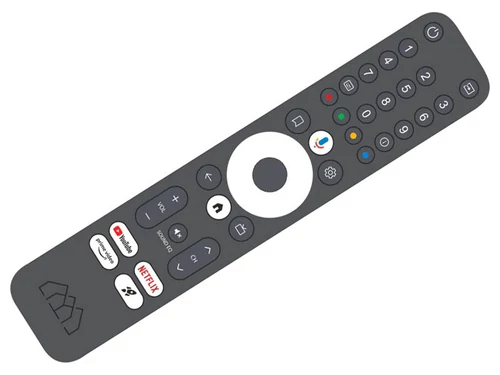
During the initial setup, you will first be prompted to pair the remote control with the media player, and then configure it to work with your other devices. I easily paired it with both my TV and receiver.
Android TV: Settings and Features
When you first turn on the media player, you will be offered the option to quickly set up Android using your smartphone. If you decline, you will need to manually enter your Google account information. I chose to use this quick setup feature.
The Android TV interface is extremely simple. It consists of a top apps panel, where you can add the applications you need, and a channel list that you can also customize, choosing which channels to display and which to hide.
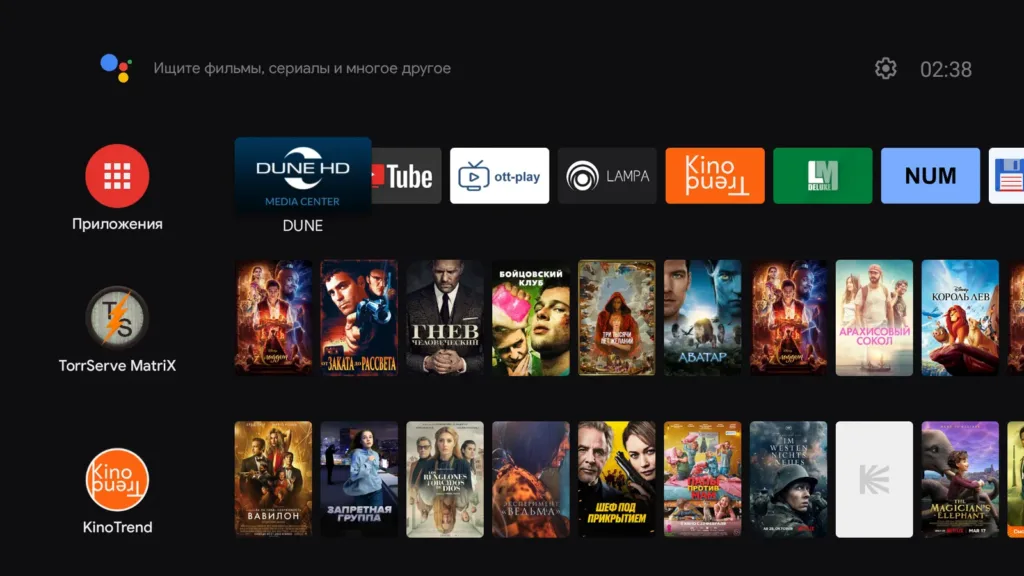
By default, there is no media player or file manager included. Therefore, I recommend immediately downloading X-Plore and Vimu Player from Google Play, or the free VLC. These will come in handy if you plan to use this media player without the proprietary Media Center (although, why would you?).
The official YouTube client plays 4K HDR content without any issues.
Using SmartTube also poses no difficulties — the AV1 codec works flawlessly.
Google Assistant works by pressing the corresponding button on the remote. You can choose which apps it will search for movies in.
You also have the option to use a virtual remote on your smartphone. Just install the corresponding app from Google Play (Google TV).
Press the remote icon, select your device, and connect to it. Everything works seamlessly.
This remote makes typing text and pasting links convenient — you can even use it entirely without the physical remote.
Of course, our device also supports Google Chromecast.
Settings
As you may have noticed, there is a rocket-shaped button on the remote. You can assign it to launch any of your installed apps.
I chose the Media Center. Next, go to the Display & Sound settings. We are interested in HDR Settings.
Here you can adjust or turn off the backlight. If your TV supports Dolby Vision, be sure to enable Dolby Vision and HDR Auto. Changing these settings will reboot the media player — this is normal. Without HDR Auto, all content will output forced HDR (and if Dolby Vision is enabled, it will output in DV). With HDR Auto enabled, the HDMI signal switches according to the content between SDR, HDR, and DV, as intended.
Also, don’t forget to enable Dolby Vision Source — LED. I will explain this in detail in the “Video Playback” section below.
In Display & Sound, you can also turn off system sounds (recommended) and access HDMI CEC settings. And, of course, select your screen resolution. The device reboots from the settings menu.
Note the missing refresh rates: 24, 30, and 60 Hz.
Nearby, there is also a Screensaver setting — essential for OLED TVs and simply pleasing to the eye.
That’s all for the basic settings; I will cover network modules in more detail next.
Network Modules
My internet plan provides 500 Mb/s. The network conditions are ideal because the Wi-Fi 6 router is only 1.5 meters away from the TV box, with no walls in between.
Here is the speed when connected to the 2.4 GHz Wi-Fi band:
Results are unremarkable. I would not recommend using this band on this media player.
Now, the 5 GHz band with Wi-Fi 6 (as labeled on my router):
The result is decent, but for Wi-Fi 6, one expects more, especially given the ideal testing conditions mentioned above.
Finally, here are the test results when connected via 1000 Mb/s LAN:
The conclusion is clear: for maximum throughput, LAN connection is the best choice. Wi-Fi 6 is great, but it’s still too early to give up wires!
Settings
Let’s go through the main settings.
General
In the General section, you can change the interface language and restart the Media Center (not the media player itself).
Video Settings
This section contains the most interesting options, highlighting the main advantages of the device. You can enable Auto Frame Rate (AFR) and Auto Resolution (AR).
Note: these settings work only when using the Dune player.
Audio Settings
You can choose Original (bitstream) instead of PCM (decoded). Be sure to enable the corresponding option in Android: Settings → Device Settings → Display & Sound.
Other
Here, you will find the App Update option. The Media Center offers both beta and stable versions. Dune is conservative with updates; stable versions are refined carefully, so most changes come through beta releases.
File Browser
You can select how the internal storage is displayed in Sources. By default, the Dune HD folder is shown, so any files you add will appear there. You can also choose Show all Android folders to see the standard Android file structure.
Startup & Exit
Here, you can configure how to exit the Media Center. By default, the option is Ask, meaning pressing the Back button prompts a confirmation window. You can disable Back button exit entirely or remove the confirmation while keeping Back button functionality.
Voice Search
Finally, an interesting and convenient feature is Voice Search, which allows you to quickly find content using voice commands.
Voice Search Implementation
This feature has been available in other Dune HD media players (those running Android 9) for quite some time. However, in the current implementation, there are a few important points to note.
The button on the remote now only calls Google Assistant. You cannot directly activate Dune’s voice search using this button, as the application does not have the required system permissions. Therefore, the voice search is now accessed slightly differently.
Next to the input field, there is now a microphone icon. You can also press and hold the Bookmark button on the remote to bring up a pop-up menu.
Voice input works throughout the Media Center. Whenever there is a text input field, you can trigger search from the context menu.
In this simple way, the developers managed to work around the system limitations described above.
Network Environment
Nothing surprising here. The SMB client is already built into the sources. Using the SMB protocol, you can connect to a PC, NAS, or, in my case, another Dune device.
An SMB server is also available, but I didn’t need it, so I didn’t configure it.
To connect via SMB, go to Sources and select Network Browser. Connect to your device.
Once connected, you can create network folders, for example, with movies, to later add them to My Collection (MC).
Access to SMB and NFS resources is read-only. You cannot delete files from your NAS or, in my case, the other Dune device to which all hard drives are connected. You can only play or copy them. Currently, Dune Media Center doesn’t have the necessary permissions for this. For write/delete access, you can use apps like X-Plore.
Audio Playback
The music player is very convenient, just like in other Dune players. Nothing has changed except for minor adjustments for remotes with fewer buttons, where each button supports short and long presses.
Important: With the latest update, holding the Bookmark button during music (or video) playback now displays the playlist.
The player supports all audio formats and correctly handles CUE files, which is important for me. DFF DSD, DSD SACD, and SACD formats are played in multi-channel mode.
All my music collection is in FLAC, and I experienced no issues. Overall, my experience listening to music on the Homatics Box R 4K Plus was extremely positive.
Video Playback
Player controls work as follows:
- Enter — pause/play
- UP/Down — open top/bottom menus without stopping playback
- Right/Left — seek forward/backward
- P+/P- — fast forward/backward (+10 minutes)
- Numeric keypad (optional, if supported by remote) — jump to percentage of video (e.g., 6 = 60%)
- Bookmark — short press shows info, long press shows playlist
All functions are also available as on-screen buttons. The icon in the top-left corner opens the movie card while playback continues in the background.
AFR (Auto Frame Rate) and AR (Auto Resolution) work flawlessly.
Due to Google requirements, this device lacks half-frame video modes at 1080p. Frequencies 25 Hz, 29.97 Hz, and 30 Hz are doubled (25=50; 29.97=59.94; 30=59.94). Whole-number frequencies are also adjusted: 24 Hz → 23.976, 30/60 Hz → 59.94.
Scaling works well, preserving aspect ratio, with manual adjustment available.
DVD-Video and Media Center playback works without issues in Lite mode (no menus). Blu-ray images are similar. Future Media Center updates are planned to add full menu support.
As of August 2025, updates have implemented menu support for both DVD-Video and Blu-ray images.
Dolby Vision Playback
The device supports full Dolby Vision (P5, P7, P8). BDAV P7 support is particularly rare and mostly found on more expensive Realtek 1619dr devices.
Dune HD Homatics Box R 4K Plus can play original Blu-ray images and remuxes without menus, preserving full quality. Playback uses FEL in MEL volume.
Due to Google certification, only LLDV mode is available. In HDR Settings, the option Dolby Vision Source — LED ensures correct output if your TV supports both STD DV and LLDV.
All formats are output in YCbCr 4:2:2 12-bit.
Dolby Vision Profiles
- DV Profile 5 (P5) — original Web-DL content from online services, container: MP4
- DV Profile 7 (P7) — copy of original Blu-ray or remux, BDAV; also MP4/MKV
- DV Profile 8 (P8) — conversion from P7 (loss of EL data) or P5 hybrid release; container: MKV
Best viewing is at original quality (P5 or P7), which the device fully supports.
My Collection (MC)
MC is Dune HD’s proprietary cataloging system, fully integrated with the interface. Posters are indexed even from sources. For example:
Posters are pulled automatically. Thanks to integrated indexing, the MC plugin may not even need to be used.
Recent updates added tag support. Initially tags were derived from filenames; later updates also pull them from mediainfo.
Collection Management
Go to Manage Collection to see all added movie folders. You can run indexing here if it wasn’t done immediately after adding the folder.
Network folders were described above. If connecting a USB disk directly, simply add folders to the collection: navigate to the folder in Sources, long press Enter, select Add to My Collection. Works the same as adding network folders but simpler.
In Storage Settings, set the interval for auto-indexing. The Search option finds movies directly from the main screen. The Movies by Folder view shows all network and local folders for direct playback.
Select a movie to open its card. Full information is available, including cast, biographies, and other films. Actors not in your collection appear in a separate category.
Pressing Enter opens a pop-up menu for file recognition (association). For series, you can manually set season and episode numbers.
IPTV and Online Cinema Playback
Since the device runs on Android TV 11, you can use any Android IPTV client. However, playback through such apps will not support AFR (Auto Frame Rate) or AR (Auto Resolution). For the best experience, it’s recommended to use Dune HD Media Center plugins, which leverage the internal Dune player. Therefore, this section is part of the Media Center review, as it provides optimal IPTV viewing.
Preinstalled services include Dune HD-TV. Other plugins can be installed separately. For example:
- Amediateka
- START
All films from these services are accessible directly from the main screen if Dune HD-TV is enabled in Online Services. Selecting a movie already in your collection allows you to play it from a local source.
The same applies to other online sources like KinoPoisk, Okko, Netflix, and Ivi.
Live TV Playback
All plugins use the internal Dune player, providing a consistent interface that is simple and easy to navigate.
The viewing interface shows the channel program at the bottom, with stream info at the top. Press the dedicated info button to display stream details. Channels can be switched using P+ and P-, or by pressing Enter to open the channel menu. Archive navigation is available using Up/Down, with Left/Right switching between channel list and archive view.
The interface is intuitive, with sufficiently large fonts for readability. Everything works smoothly with AFR and AR enabled.
Most major IPTV providers have dedicated plugins. You can also create custom plugins using the IPTV Channel Editor. For example, I created a custom plugin for Ilook.tv, filtering channels and keeping only international sports channels. The background and category icons are fully customizable. Ilook.tv also provides a rich media library accessible via the plugin.
Channel display options can be changed through a pop-up menu. Many layouts are available, providing flexibility in presentation.
In Media Center, you can add any IPTV plugin directly to the TV section. The plugin will integrate into the interface, and launching it is as simple as clicking its icon. You may also add your own Android client, which will display only the app icon for launching.
The left navigation panel shows channel categories. Preview of channels and program guide is available:
Initially, Dune HD-TV is shown; I also added my own iLook.TV plugin. This setup allows multiple viewing scenarios with AFR and AR fully operational, enhancing the IPTV experience.
My second most anticipat game this holiday, just slightly behind Super Mario Bros. Wonder, is Sonic Superstars. Next to Mario,
I’m a big Sonic fan and love Sonic 2D games the most. Sonic Superstars is a brand new 2D Sonics game with 3D characters with
bright and colourful graphics. The game supports up to 4 players in local multiplayer fun and includes your favourite characters
such as Sonic, Tails, Knuckles Amy and more.
Dune Control App
The Dune Control mobile app is available for both iOS and Android devices and is designed to control Dune HD media players. I include it in the Media Center review because it works directly with it, serving as an additional tool for convenient interaction with your multimedia center. While Android TV offers some mobile control capabilities, the official Dune HD app provides a more complete experience.
To use the app, install it on your device, go to settings, and enter the IP address of your media player, including the port :11080. (In future updates, this step will be simplified: the app will automatically detect your Dune device without entering the IP or port.) Example:
192.168.1.62:11080
*Replace 192.168.1.62 with your own device’s IP address.
After connecting, you can put your physical remote aside — the app provides full control from your smartphone. Notably, it allows you to manage the music player even if the TV is turned off.
All other Media Center functions are accessible: settings, plugins, and your collection. Through the app, you can create network folders, index them in your collection, and more.
In short, the app provides full control over your Dune HD Media Center. It is completely free and available to all Dune HD media player users running Android.
Note: The app works only within Media Center. Outside of Media Center, it is ineffective; for general Android TV control, use the Google TV app described earlier.
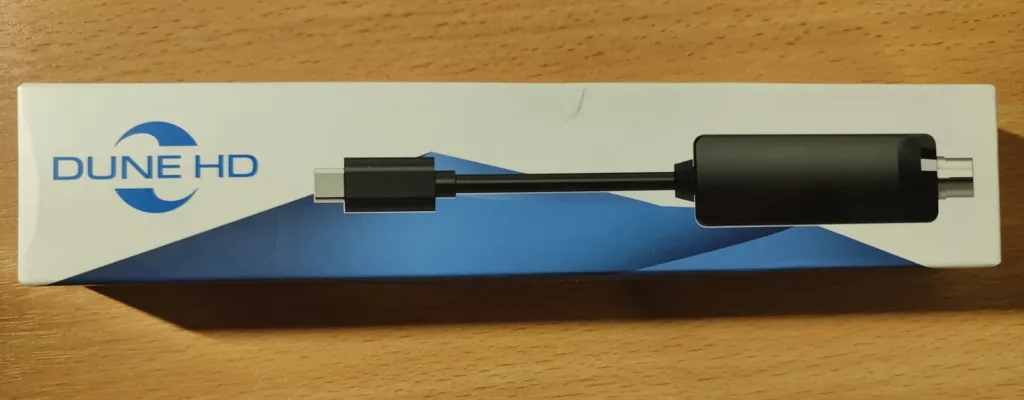
DVB-T2/C Module
Now, it’s time to talk about the aforementioned module. After all, the TV Box has a dedicated port for it!
The module connects while the TV Box is powered off; connecting it while the device is on may prevent it from working properly.
For those familiar with digital broadcasting, DVB-T2 allows free-to-air digital channels (just add a compatible antenna), while DVB-C provides access to cable TV channels from your provider. In my case, I tested the DVB-T2 antenna setup at my dacha.
To launch the module, press the “TV” button on the remote (next to the Home button). Without the module connected, you will see a warning stating that the service is unavailable.
Setup is straightforward: select your country (language adjusts automatically) and then choose the type of digital TV (DVB-T2 in my case). The Box will scan all frequency ranges for available channels.
Once scanning is complete, the first channel starts automatically. Pressing the TV button again opens the module’s settings, which include two tabs: Menu and PVR. The PVR tab allows recording from live TV, but requires a connected storage device.
Settings are intuitive: electronic program guide, channel rescan, editor, timer, etc. Notably, the module detected more channels than my TV’s built-in tuner, including some HD channels. Results will vary depending on your antenna quality, placement, and signal reception. I used a simple passive antenna near the TV; signal quality was good, but positioning matters for optimal reception.
This module is especially useful for locations without internet or satellite access, like a summer house. Since not everyone needs this feature, it’s smart that the manufacturer offers it as an optional add-on — better to buy it if needed rather than pay for unnecessary functionality upfront, which would increase the TV Box’s retail price.
Conclusions
For clarity, I compiled a table listing, in my opinion, all the advantages and disadvantages of the Dune HD Homatics Box R 4K Plus.
| Advantages | Disadvantages |
|---|---|
| 1000 Mbps LAN and Wi-Fi 6. | 2.4 GHz Wi-Fi is not the best. Wi-Fi 6 speeds could be faster. |
| Support for all legal VOD services, including Netflix. | No Auto Frame Rate (AFR) or Auto Resolution (AR) in Android apps.** |
| Full Dolby Vision support, including BDAV playback.* | No support for whole frame rates (24 fps → 23.976, 30 fps → 29.976, 60 fps → 59.94)** |
| Dolby and DTS sound support. Multi-channel playback for lossless audio formats: WavPack, SACD (DSD), FLAC, ALAC, APE. | SMB and NFS resources are read-only.* |
| Auto Frame Rate and Auto Resolution in Media Center.* | SMB server uses a non-standard port, making setup on Windows slightly more complicated.* |
| SMB server. Ability to connect via SMB and NFS.* | DTS-HD outputs as DTS.** |
| Integrated catalog system.* | No option to disable HDCP check (may cause delays or flicker when connected via AV receiver). Not a major issue, as all certified devices behave similarly. |
| Plugin support.* | — |
| Full control via Dune Control.* | — |
| Expandable modules support (DVB-T2/C available at review time). | — |
| One of the most powerful certified TV boxes in its class. | — |
| DVD and Blu-Ray playback with or without menus (Full or Lite mode).* | — |
* When using the official Media Center.
** Resolved in Android 14 (see update at the end of the review).
In my opinion, this TV box is very successful and promising. Based on its technical specifications, there is currently no better option in this class of certified devices. We get both a certified device and an advanced solution for local media playback. Dune HD has combined what previously seemed incompatible, creating a multimedia powerhouse capable of handling even the most demanding tasks. The advantages clearly outweigh the disadvantages. Dune has delivered an interesting, forward-looking solution with no direct analogs, making this Android TV box quite unique in its class.
Update — 29.08.2025
Hello again! I decided to add an update to this review due to significant changes associated with upgrading the media player to Android 14. Currently, it is still a beta version and requires manual updating, but the process is now safe and straightforward. Following the instructions, you can even revert to Android 11 if needed.
Previously, updating required Recovery mode, which carried a risk of bricking the device if, for example, the power went out. Now, there is a safe method that avoids any danger to the bootloader.
After the update, all settings will reset to factory defaults — which is actually beneficial in the long run. Just don’t be surprised by this behavior.
Key improvements in Android 14:
- Audio: Bitstream + Passthrough now outputs DTS-HD instead of core DTS, restoring full HD sound support. Multi-channel PCM is also fully supported. Additionally, there is a new option to disable unsupported formats for your TV, receiver, or soundbar.
- Video: System-level Auto Frame Rate (AFR) is now available. In any compatible app (Vimu Player, SmartTube, etc.), enabling AFR will allow video to automatically switch frame rates according to the content. You just need to go to Settings → Display & Sound → Use content frame rate and set it to “Always.”
- Full frame rate support: Now both fractional and whole frame rates are fully supported. 24 fps and 60 fps video will output at native frequencies, instead of 23.976 or 59.94.
Example: 24Hz is now correctly shown as the current video mode.
These changes correct three of the previously noted limitations in the review table — a definite improvement.
However, there are some restrictions due to Google’s limitations on applications. For instance, apps can no longer use certain services in special accessibility options — the toggle is disabled. Workarounds exist via ADB installation, but this may be complicated for users unfamiliar with the process.
Forums like HDTV Forum and 4PDA provide detailed discussions and additional guidance. For installing APKs with built-in services (e.g., TVQuickActions), I recommend using the ADB TV app.
As always, if something doesn’t work or you prefer the previous behavior, you can revert back to Android 11. The choice is yours.
Thank you for your attention — I hope this update proves useful!